The first thing everyone does after an npm compromise alert is grep the lockfile. Finding the package there triggers panic. Not finding it triggers relief. Both reactions are premature, because the lockfile answers the wrong question.
The lockfile proves exposure, not execution
Most npm malware does its damage in one of two places. Install time is the classic: lifecycle scripts (preinstall, install, postinstall) execute the moment the package is unpacked. The second is build and test time, when something in your pipeline requires the package and its code runs inside your CI job. A line in package-lock.json only means your dependency tree can resolve the bad version. It says nothing about whether a machine downloaded it, and even less about whether it ran.
That is the gap where the first hour gets wasted. The incident writeups everyone passes around on alert day (event-stream, ua-parser-js, more recent campaigns like Shai-Hulud) tell you what the malware did to other people. They do not tell you what to do with your own pipelines. So here is the hour, structured as three questions in a fixed order: can the bad version resolve in your tree, did an install fetch it, and did a process execute it.
The decision tree
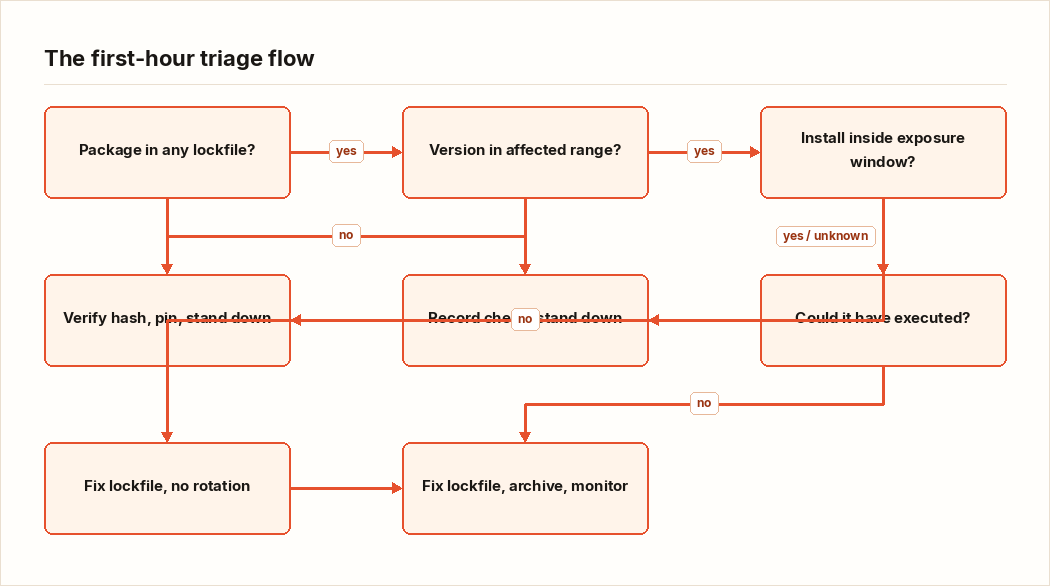
Q1. Is the package in any lockfile, in any repo?
    NO          -> Record the check, stand down, bring it to the postmortem.
    YES         -> Q2

Q2. Is the resolved version inside the advisory's affected range?
    NO          -> Verify the integrity hash, pin, write it up, stand down.
    YES         -> Q3

Q3. Did any CI job or dev machine install while that version
    was in the lockfile?
    NO          -> Fix the lockfile, confirm CI is green, no rotation.
    YES/UNKNOWN -> Q4

Q4. Could it have executed? (install scripts enabled, or the
    package is required by your build, tests, or bundler)
    NO          -> Fix the lockfile, archive logs, monitor.
    YES/UNKNOWN -> Full secret rotation plus artifact audit. Open an incident.
Notice how often the honest answer is UNKNOWN. Treat unknown as yes. The cost of an unnecessary rotation is an afternoon. The cost of a missed one is an attacker sitting in your cloud account for a quarter while you feel relieved about a grep result.
Node 1: find every lockfile that mentions it
grep -rn --include='package-lock.json' '"<package-name>"' .Run it per repo, and do not forget the second and third lockfiles in a monorepo. If parts of the org use yarn or pnpm, grep those lockfiles too. Check release branches that still get builds, because CI builds branches, not just main.
Inside a checked-out repo, npm ls <package-name> shows who pulls it in. Most of the time it is transitive, several layers down, dragged in by a build tool nobody has thought about since the day it was added. That archaeology matters for the writeup, and it is the same skill as tracing a bad dependency through a tree, just in a different ecosystem.
Node 2: compare the resolved version against the advisory
Pull the advisory named in the alert (usually a GitHub Advisory Database entry) and write down two things: the affected version range and the publish window, meaning when the bad versions were live on the registry. Both matter, at different nodes of this tree.
Then read what your lockfile actually pins. In a modern package-lock.json, look under packages for the node_modules/<package-name> entry and note its version and integrity fields. Older lockfiles carry the same data nested under dependencies. Running npm view <package-name> time --json gives you per-version publish timestamps so you can line everything up.
If your pinned version sits outside the affected range, you are nearly done. Do one cheap check anyway: confirm the lockfile's integrity hash matches what the registry serves today.
npm view <package-name>@<your-version> dist.integrityIt should equal the lockfile's integrity string exactly. If it does not, stop. Either the lockfile was tampered with or your mirror served something strange, and both of those are their own incident.
For byte-level proof, fetch the tarball and recompute the hash yourself:
cd "$(mktemp -d)" && npm pack <package-name>@<version>
openssl dgst -sha512 -binary ./*.tgz | openssl base64 -A
Prefix the output with sha512- and compare it to the lockfile value. If your base64 wraps the output across lines, join them before comparing.
One caveat before you paste any of this into a runbook: flags drift between npm major versions. If something errors, trust npm help on your machine over this page.
Node 3: did an install actually fetch it
The git history of the lockfile gives you the exposure window:
git log -S '"<package-name>"' --oneline -- package-lock.json
git log -S '"version": "<bad-version>"' -p -- package-lock.json
The commit where the bad version appears and the commit where it disappears bracket your window. Now pull CI history for every branch that ran an install step inside it. npm ci wipes node_modules and installs exactly what the lockfile says, so any job that ran it on those commits fetched the package. Jobs running on a warm node_modules cache likely fetched it earlier, the day the cache was populated.
Archive the relevant build logs immediately. CI log retention is short in a lot of orgs, and you cannot reconstruct this next week from memory.
Here is the rule I will defend in any postmortem: if you cannot prove no install happened inside the window, the answer is yes. Missing logs are not evidence.
Node 4: did it execute
Install-time payloads die without lifecycle scripts. If the CI jobs in your window ran installs with --ignore-scripts, a script-based payload never fired. Check the actual CI configuration for every job, not your memory of it. Teams set the flag in one pipeline and forget the other three.
Runtime payloads are the sneakier case: the package's code runs when your build, tests, or bundler require it. Go back to the npm ls output. If the package sits under your test runner or your build toolchain, assume it executed in those jobs.
Can you check whether it phoned home? If your CI has egress logging, yes, go look. Most CI setups have none. You will answer the exfiltration question later, from credential audit logs, which is the same discipline as verifying what a service actually exposes instead of trusting the defaults.
Last, artifacts. If a build inside the window produced artifacts that shipped anywhere, pull one, rebuild from a clean checkout with the fixed lockfile, and compare hashes. A mismatch means the artifact is carrying something extra.
The rotation order, with the reasoning attached
When Q4 lands on yes or unknown, rotate everything the CI environment could see. Order matters because you are racing someone whose head start is measured in hours. This is my order, built from blast radius. I am not aware of any vendor that publishes an official one; if yours does, use it.
- Credentials that publish or push. npm tokens, source-control tokens with write scope, SSH deploy keys. These buy the attacker persistence. With a push token, they plant new code and survive every other rotation you perform. Revoke these first.
- Cloud and infrastructure credentials. The AWS, GCP, or Azure keys your CI holds, plus registry push and deploy credentials. These are what turn a build compromise into a production compromise.
- Runtime and data secrets. Database passwords, third-party API keys, webhook secrets, anything else sitting in the job's environment variables. The threat here is quiet reads of your data. Serious, but it does not spread by itself.
- Developer-adjacent material. If the window was days long, assume laptops installed it too: tokens in ~/.npmrc, SSH keys, cloud CLI credentials. Also anything in the CI secret store that the compromised job could have read, even secrets that pipeline never used.
Three operational rules matter as much as the order:
- Revoke, then reissue. On some platforms the old secret stays valid until you explicitly revoke it, even after a new one exists. Check how yours behaves.
- Deliver new secrets through a clean path. Pushing fresh credentials into the same CI system, using the same tokens that just leaked, is how incidents get sequels. Rotate from a known-good machine, through the provider's console or CLI.
- Read the audit logs for the window between theft and revocation. Cloud audit trails, source-control audit logs